
Maid Kyouiku: Botsuraku Kizoku Rurikawa Tsubaki The Animation - 2
メイド教育。-没落貴族 瑠璃川椿- THE ANIMATION
Description
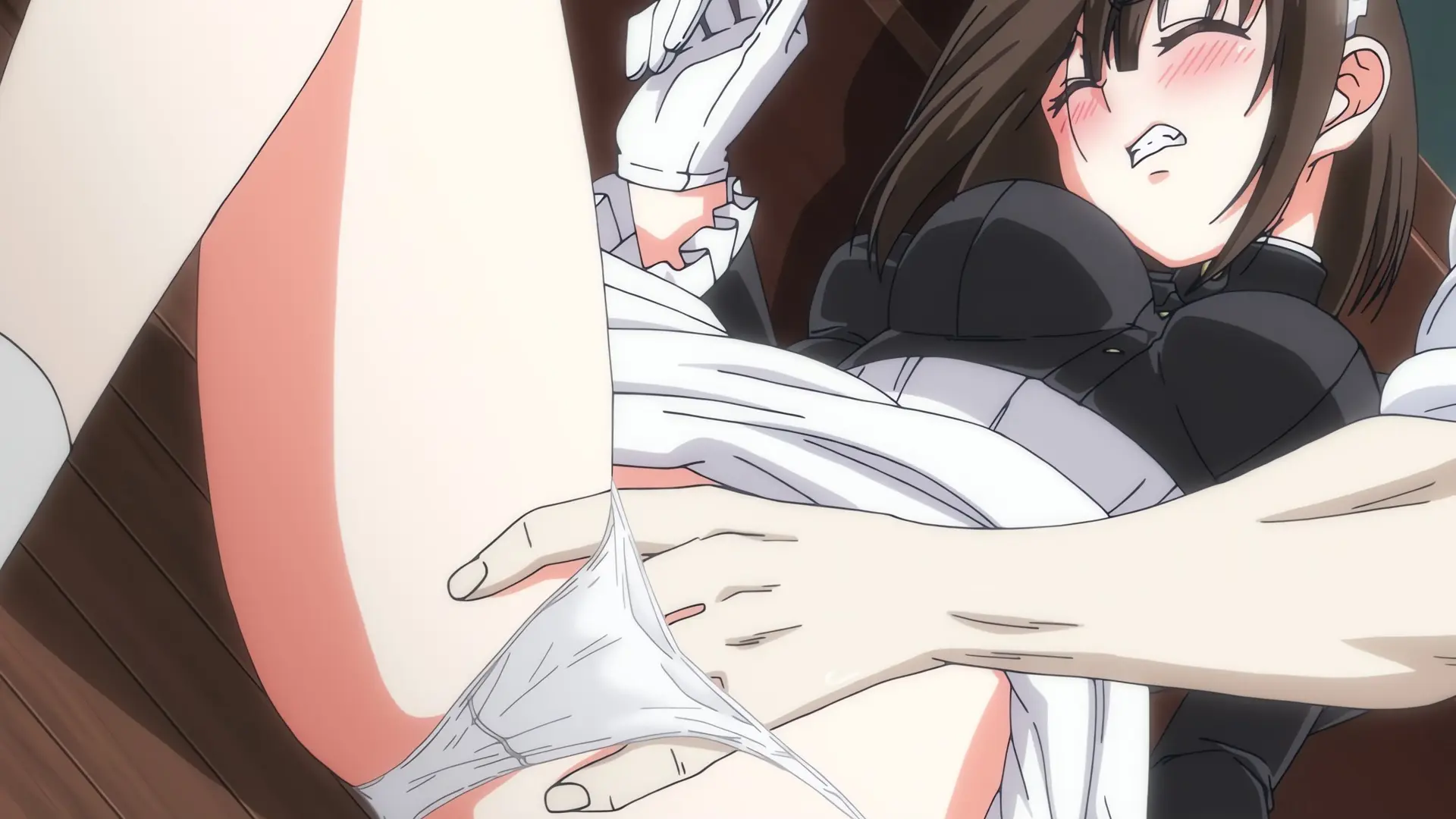
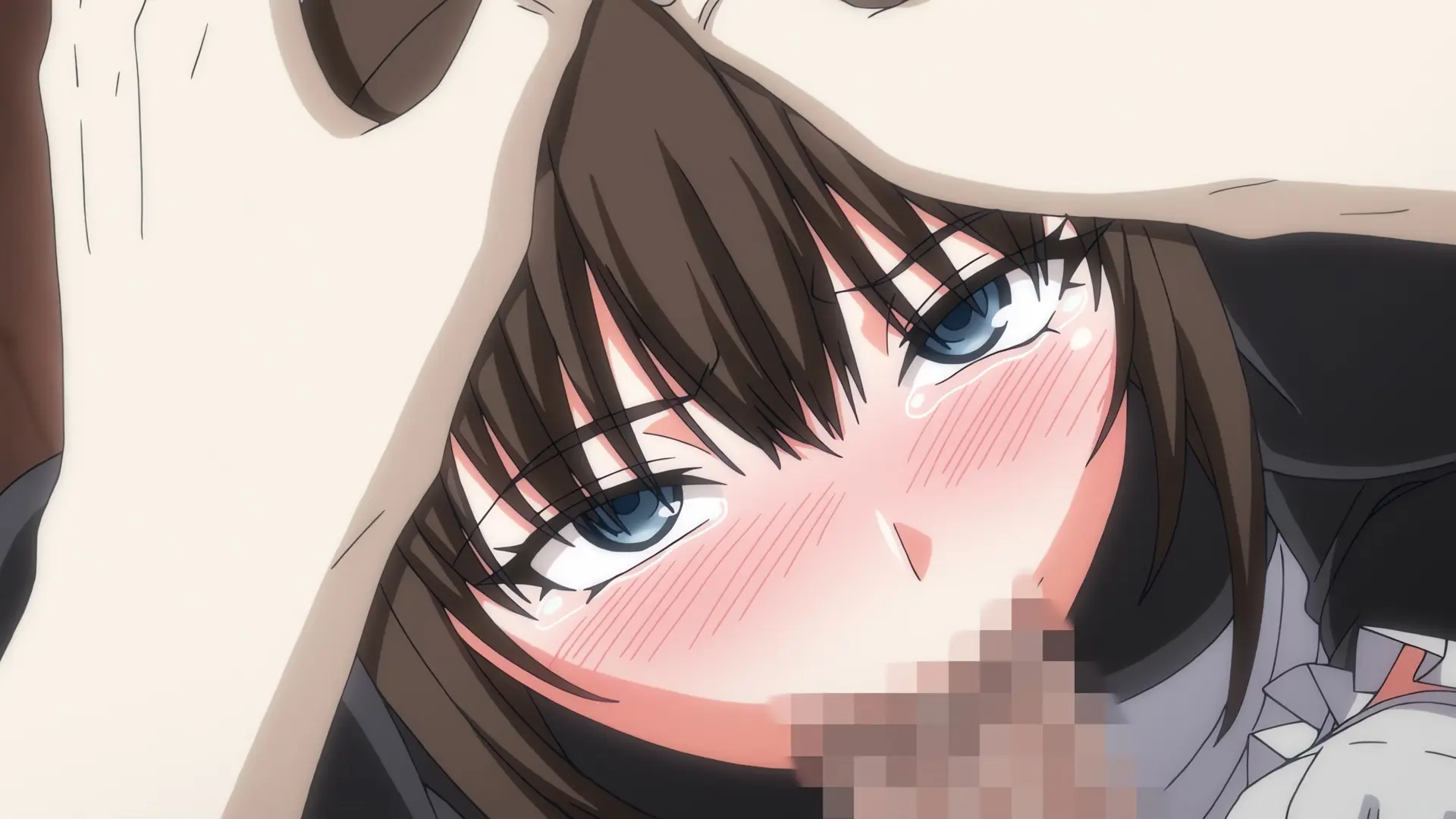
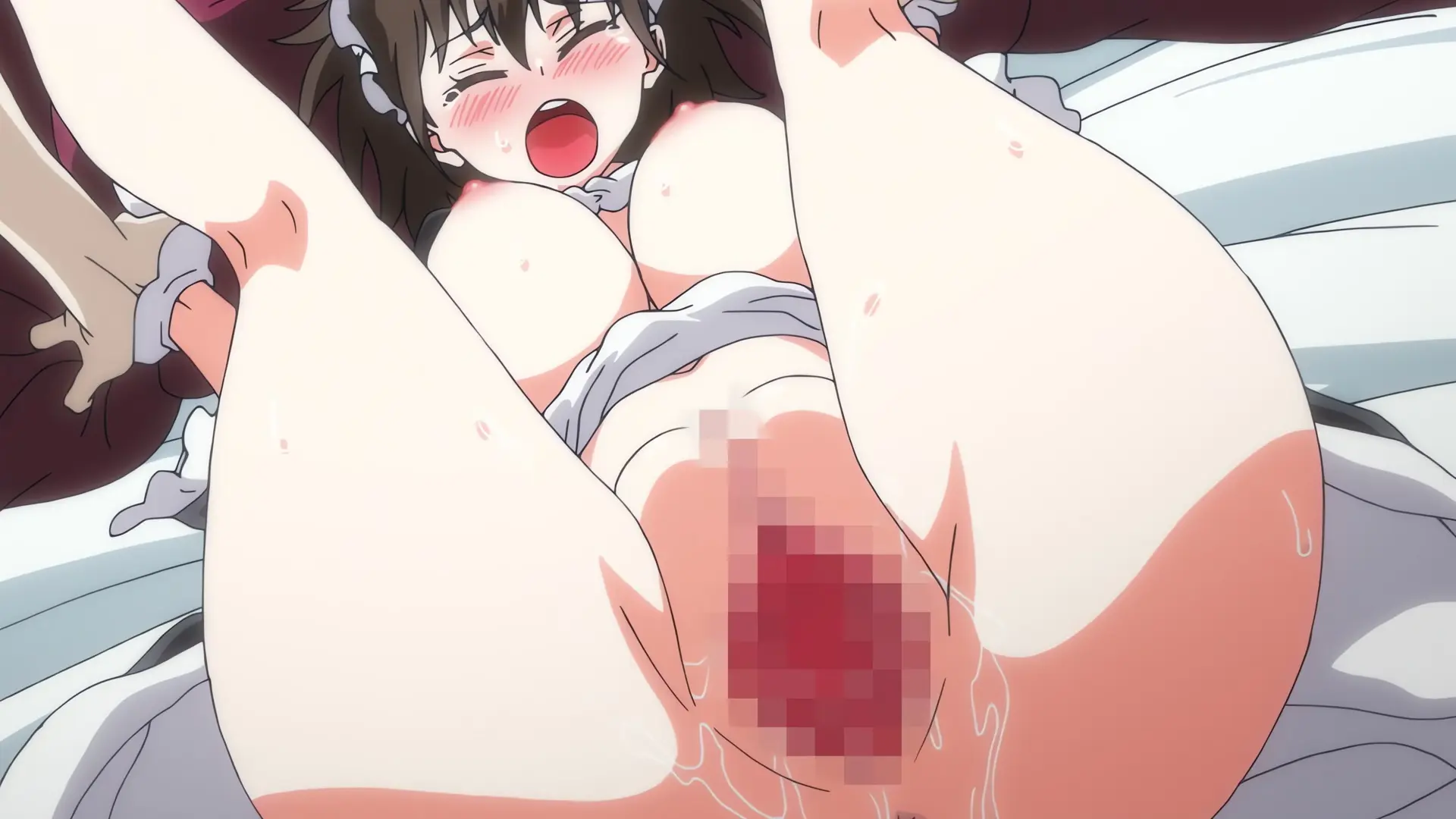
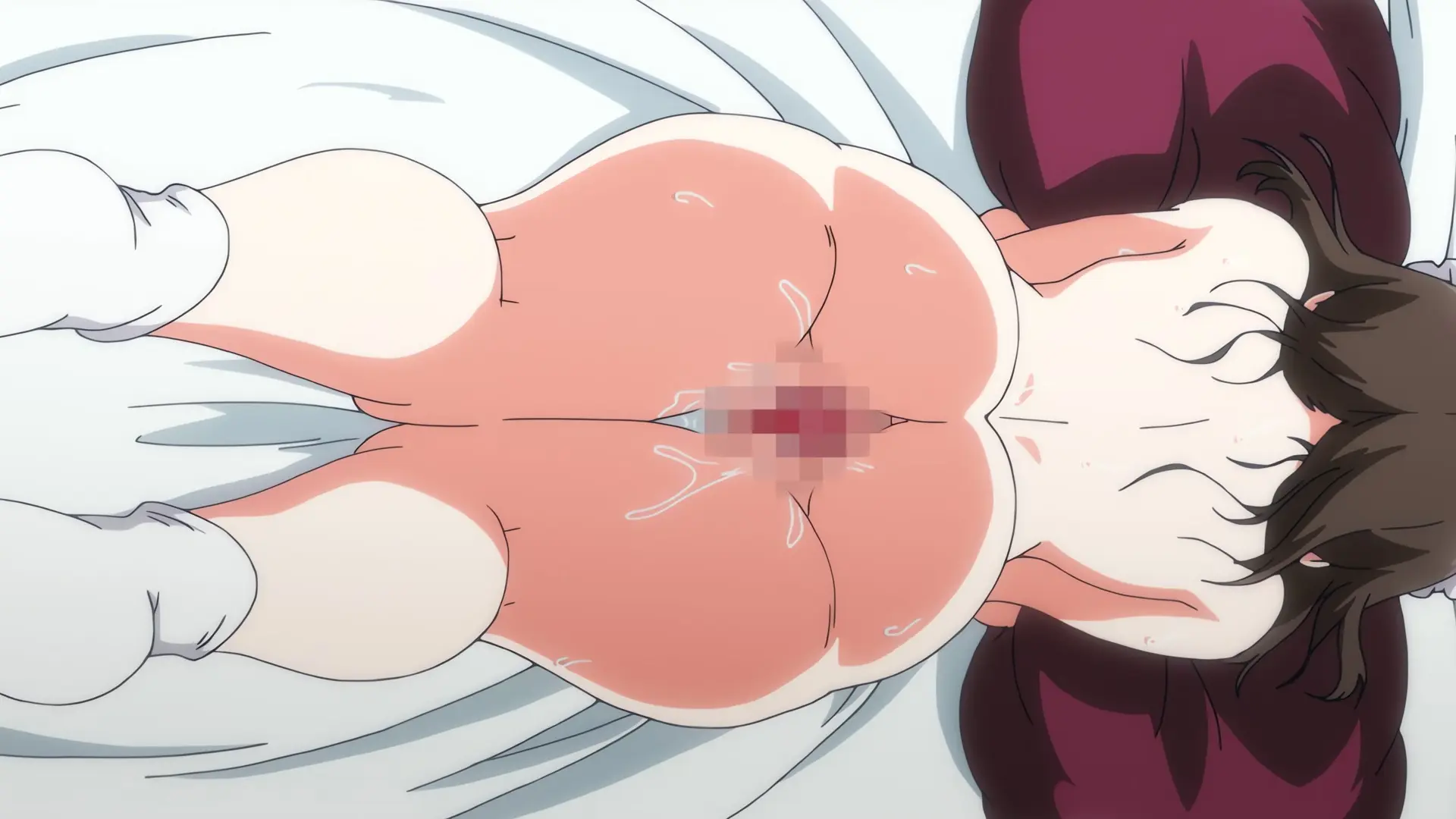
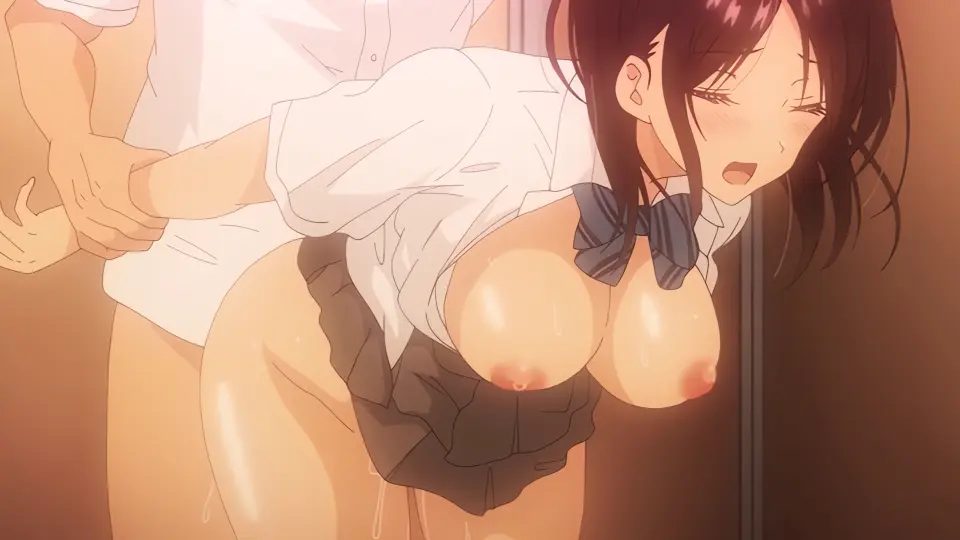
Called by her master during work, former noble Tsubaki Rurikawa is lewdly fondled in the hallway, even with a junior colleague nearby, feeling far more pleasure than she expected… Bewildered by her body’s changes, Tsubaki tries to maintain her noble pride with composure… But with each day of perverse maid training, her mind and body are gradually consumed by pleasure…!
Gallery



















More from Studio Pink Pineapple






Popular Weekly






Comments
Log in to join the discussion.
I've tried hard merging the subtitles and it fails every time(the process starts and then fails at 2%), the first episode worked ok but this one doesn't, tried in both, normal and 48 version, so i'm guessing it's the subtitles file(Tried loading it in the player and it doesn't work)?
Is the video corrupted or something? For some odd reason, I couldn't compress the 48 fps video. The other recent releases works just fine. I am asking since it does play but is the only one I cannot compress.
What do you mean by Compress? Like a Zip file?
No, compress as in make the video size smaller. Its still in whatever format the video is like mp4, mkv or avi, etc. Like say this series' episode has a size of roughly 840mb, via compression it can be made smaller. Somewhere around almost 70 to 75% smaller, the new video is around the 230 to 280mb range. There is some loss in quality but not by much and it is still at 1080p. Hard to notice if its on the phone and even when I watch it on a laptop or a 4k 65-inch tv. Although you can compress the video to to say 720p, 480, etc to make it even smaller. You can even combine the process of converting the format as you compress it too. Kinda helpful once phone storage is getting a bit full due to the sizes. Specially in my case since I only had 256gb storage and uh, I may have been on a downloading spree and have like say around almost 60 to 70% of the current total of uploaded vida of the site on my phone.
Please let me know how you do it cause even I have downloaded quite a lot and all of it is in 48fps and I want it that way but lower file size would be great
For Smartphones just search Video Compressor by Inverse AI. It has ads, but not intrusive or annoying enough to warrant a purchase. I don't recommend it though. It drains battery like crazy, temp can hit to around the same temp when playing heavy games like PC emulation or playing WuWa and Genshin, and you'll have to restart if your phone dies mid compression. Plus, you cannot use your phone or it'll stop mid process as well even cannot have your phone be on standby. You'll be forced to keep your phone plugged in a charger or Powerbank too. A 16-18 min vid can take an hour to 2 depending how powerful your phone's processor is. Although if you ain't going anywhere and your AC is on, it should be fine. For PC, I use VLC. VLC has a built-in Compression tool in its player. You can still do other stuff, multi task but gaming and anything heavier is a no go since comoression seems CPU heavy. Its a bit faster though since PC processors are faster.
Thanks for the info. I'll do it on PC itself. I hope VLC doesn't convert the 48fps video back to 24 or 30 during compression though
Also What Bitrate do you convert it to and what codec H264 or H265
VLC or any video compressing app wouldn't convert/change the fps unless you specifically choose to change it. For Video Bitrate, that's a bit though try somewhere around 1500 to 3000 since IIRC the 1080p vids in this site is somewhere aroubd 4000 to 4500. Its a bit subjective since it affects the file size and quality. Try finding what range works for you in terms to size and quality ratio. For Audio, don't touch it, jist leave it as it is. For the codec, H264 offers better or more compatibility. Best for older or slower devices as well as for general streaming like YT, socmed. H265 offers better compression(smaller size/lower bitrate), supports 4k/8k better quality(HDR), ideal for hi-res streaming/storage. Best for modern and powerful devices. I say go for H265 since the videos on this site are already H265, unless you are gonna put the compressed vid in a device thats like 8 to 10 yrs old or on a budget smartphone that costs around 200usd below.
So in your case, when you Compress a 1080p Vid from here let's say of 1gb, how much size do you end up with after compression?
Somewhere around 250 - 750mb depending on how much I like the show. If it was a favorite of mine, that I enjoy rewatching say once a month at the minimum. I try to keep it around 600 to 750mb at the minimum. If it is something really good and I watch it say once every 2 or 3 months at the minimum. Around 400 to 550mb range. If I enjoyed it but would mostly watch it mostly once to thrice a year. I don't mind compressing it at around 280 to 350mb.
Oh BTW, you download the 48fps versions or the normal ones? Which do you prefer to watch?
Depends, I usually download the 48 fps, usually the ones from PoRo, Nur, etc. If it ain't available the 1080p. In some situations I opt for the 4k version. If its my favorite series but already has a good animation in my opinion like Kangoku Senkan, Kuroinu Kedakaki, etc. I go for both the OG 1080p, 48 fps and the 4k. I then compress the 4k vid as 4k, 2k and 1080p, and then the OG and 48 fps version. For some, if it doesn't have 48fps ver like Bible Black, etc I download the 4k and compress it into 4k, 2k and 1080p then download the 1080p to compress. Then compare the 4k compressed into 1080p with the 1080p compressed as still 1080p. Find which looks better. Then I put all in my phone, 4k Google TV and laptop and compare. The higher res is on an external Flash Drive for when I wanna watch it in higher res on TV or for when I upgrade my phone. While the 1080p winner is on my phone. Sometimes for both scenarios, I check to see if some other sites has 60fps of them too. If not, I change them to 60fps using the program or app itself, it ain't the typical AI inserted frames so some look just the same while some just smoothens the animation further. For the older ones like Ai no Katachi, Resort Boin, Boin Lecture, etc. Which I still watch every once in a while, but not as much as my faves, then just 1080p. I also see if changing them to 60fps would help smoothen the animation.
Can it work properly on phone and if yes, what's the procedure to do so ?
Yes, it can work just fine its what I used back when I have no laptop. Some other cons are, phone can get warm so its best to have a phone with decent chamber vapor coolong. Even better, do it when you have the AC on or you have an electric fan blowing cool air in its direction. So avoid phones or tablets that use chipsets that are proven to get hot even on somethinf as light as social media browsing like Snapdragon 888 or 8 Gen 1 unless that phone has extreme cooling to compensate. It takes longer depending on how powerful your phone's SoC or Chipset is, best to have a phone in the midrange or above of around even if its 5 years older. Higher is better but if your phone can handle heavy tasks like video editing and rendering, graphic intensive gaming or even emulation then ita good. Something like a Snapdragon 7 gen series, 778g, 865 or 870, or Dimensity 900s, 1000s, 7000s or 8000s is fine. Apple XR or 11 os also fine, can't remember which model my cousin uses, is good too. Even a Google tensor from a Pixel 6a and Snadragon 6 gen 3 or 6s gen 3 series is enough. Anything lower or weaker is just way to slow imo. I once tried it in a Helio G99 phone, took way longer. If phone dies due to low battery mod compression, you start all over so you want a phone with decent battery capacity around 5000 mAh minimum. Or, at the very least capable of fast charging. 18 watts is fine, its close enough to trickle charging if you have concerns as to battery health but powerful enough it can power it on for the whole process. Also, you cannot multi task, same thing happens. Process may stop if you do something else or phone is in standby. So best to do it as you sleep so it can do its thing uninterupted.
For the how, I use Video Compression app by Inverse AI. Any of the two that they have is good, and both are free on the app store, no limit but has ads. It ain't that intrusive. On the app, enable background processing, allow permission to access files. Select 'Import' or 'Convert or Compress', depending on which app you choose. Then just select what video you want to compress. Videos to do a Batch process. Then you will be directed to the options on how you wanna compress it.
For the app with Import button.
Compression speed, select how fast you want it. Slower means smaller size, faster means bigger size. Like a 1gb vid can end up say at 250mb in slower speed or 350mb in faster.
Codec, H264 allows better compatibility with older devices. H265 allows better compression so a video of the same quality on H264 will be smaller in size, or a video of the same size wil have better quality.
Format, just pick the same one as the OG video but it is fine to select another format. It takes a bit longer since it has to convert the video as well.
Next are the compression options.
The Small, Medium and Large Files, with Base or HD version. HD just means best quality and smallest size possible but takes longer. Base is slightly faster for slightly lower quality and bigger size.
Large is just compress but in the same resolution. Medium is for lower resolution depending on the OG videos resolution. 1080p if OH is 2k/4k and 720p if OG is 1080p. Small is the lowest resolution, again depends on the OG's resolution. 720p if OG is 2k/4k and 540p if video is 1080p.
Fit to Size, you choose the target size you want the compressed video to end up in and the app will do the rest. Resolution is the same but bitrate, quality, etc are auto.
Custom, select the resolution you want, you can enter a custom one in case you want too. Say a 4K into 2K or even 1.5K. Quality, self explanatory, either choose low medium or high. Framerate just leave it the same. You can set it how you want but using it to make the framerate higher doesn't really work or change anything that much. It looks a bit smoother but since it ain't really an AI upscale, it ain't gonna be like the 48fps uploaded here when compared.
Lossy, you have two sliders one for Resolution, the other is bitrate. Bitrate, you choose your own. Experiment, find which value gives you the best viewing experience when it comes to quality and size. I personally go for around 1500 to 3000kbps for 1080p as the 48fps videos here seems to be at the 4000 to 4500 kbps.
Trim, its in the upper left useful if you wanna remove the opening logos, credits and remove certain parts to make the vid sex scenes only.
Preview is either useful if you are compressing videos to see the results. Or useless, if the video has a logo sequence, as it only shows first 10 secs of the result.
After that click next, then either rename the video if you want, just leave the audio as is. Pick 'Add to Queue' if you want to do a batch process like convert 2 or more videos but want to rename each one individually. Icon of queue list appears in the bottom left where you can remove a video, clear the whole thing or start the batch. Click 'Start' to start the compression process of the current vid, including those in the queue list.
The results screen tells if the compression is over or if there is an error. If it finishes you can see the results, cannot remember what all the options are but, the useful ones are viewing the result directly. Compare which allows you to well, play both the result and OG video and compare them as they play side by side.
The compressed videos will be in your Movies Folder in the a folder named "Video Compressor".
For the one that has the Convert or Compress button.
Same aa the other. Once you select what you want to compress these are the options.
Conversion Profile, you can make one and save your current options and select which of the saved ones you made you wanna use. Format and Resolution are the same. Subtitles and Audio tracks, if you have different external ones you wanna use, otherwise just leave it be.
Advanced options Frame Rate, same as the other. Leave it as it is, though you can choose 120, 240 or 300 but the same remains. It wouldn't really AI upscale them so it wouldn't matter. Codec, it allows more options other than H264 and HEVC(H275). There's MPEG 1, 2 and 4, AV1 and VP 8 and 9. Among the new one AV1 offers even better compression than H265 but requires more computational resources. It takes even longer than H265, unless you have a flagship level phone, old or the latest. Something rocking a Snapdragon 8 gen 2 or higher, or a Dimensity 9200 or higher. It can take a 30 minute video somewhere around say an additional hour or even more. Supported by newer hardware (RTX 30/40, RDNA 2/3 and Android 14). VP8 and 9 are made by google. VP8 is for old device support and VP9 is mostly used in Youtube Streaming IIRC. Someone may be able to explain those better so just stick to H265. Audio Codec, just leave it be. Most of the vids here use AAC while some use AC3. If you are having issues with audio, try setting it to AAC. Video Quality is greyed out for all of the time I uses the app. Just leave it as it is. Video Rotation is self explanatory. Leave it at 0. Video Flip, allows tou to flip videos either horizontally or vertically. Useful if you downloaded a flipped video that has the subtitles flipped too.
Compress options. Video Bitrate, already explained in the other comment. Audio bitrate, keep as it is. High Quality, select it if you want a higher quality compressed video.
If High Quality is selected, options for Compress changes. Newer options are. Encoding Type, x264 or x265 only. Its just H264 and H265, nothing fancy or complicated. CRF, its Constant Rate Factor. Superior option, offers consistent quality. Adjusting bitrate depending or based on scene complexity. Lower bitrate on low motion scenes, like those parts where characters are chatting, walking, etc. Higher bitrate on high motion scenes, fight scenes, sex scenes, etc. The app says lower CRF, Higher compression. Dunno if the app is just weird as in other programs or apps its the other way around. Anyways, for 1080p a good range is 20 to 22 at H264 and 20 to 24 at H266, 4K can go 22 to 26 H264 and 22 to 28 at H265. Again, its up to you which looks good for your preference. You can go even higher if you want. Speed, as before is the same. The slower it is, the higher the compression or smallee the size.
Once you have everything out, just click Convert. Choose Add to Queue for Batch Processing, icon list appears on bottom right this time so its a bit akward as it sits on top of the Convert button. Choose Start to Start the process including those in the Queue.
Results are the almost the same as the other app. Can view result, compare ot with OG Video and Delete Source File.
Result appears in Movies Folder, inside a Folder named Video Converter, in another Folder named Video Converter.
Yes, I understood that. I tried the video compressor that you recommended. First, I downloaded the video in 4K, which was around 700 MB. Then, I selected the same video in the video compressor app. I didn’t change any settings and compressed it using the default settings, just like app suggested. I compressed the video at night when my phone was not in use. After compression, the video size became around 153 MB. Now I have a few queries: A.Does using a video compressor affect the phone too much? I mean, can it cause any damage or long-term issues? I have very little knowledge about this. B.I checked the quality of both videos, and I didn’t notice any major difference. The smaller file still felt like it had the same quality. So, in the end, what exactly changed that caused such a big reduction in size? C.I compressed only one episode this time. Can I compress multiple videos at the same time by selecting more than one file? D.Is this compressor safe for long-term use? Because, as you mentioned, it does affect the phone in some way.
A. Just the usual, it doesn't really affect anything big I think. Like battery life degrading, which happens anyways as years go by. Like if two people have the same phone, X uses his casually and Y is a heavy user like a gamer. Their phone than can last a day, 24 hours on standby from 100 to 0% charge, brand new. After a Year, X who only does mostly Socmed and a bit of ML or Cod everyday. May have his phone last 22 hours on standby. Y on the other who games 2 hours on a weekday, and more on a week end sometimes while charging may have his phone lasts 21 or 20.5 hours instead. Been doing it for two years, started around 2023 since I discovered Hstream and bought my main phone whoch is midrange, with 4500 mAh battery. It still serves me just fine. Not really needing a replacement. Other than that, I am not sure if say if done on a Samsung, would it cause or hasten a green line issue. Or even if it may cause Amoled burn. My phone is in Dark Mode and usually stays at 50% brightness. B. Mostly, its the lower bitrate if everything is the same. Otherwise, it would be even smaller if the FPS and Resolution are lowered and a codec that is better at compression is used. C. Not at the same time but by Batch. Say you choose multiple ones, say Bible Black episode 1 to 6. Rather than all at the same time, it converts the 1st selected vid, once it is done, the 2nd one follows. Till all 6 episodes are done. You can check which one is currently being compressed since it does show the individual result for each video and there is a small secfion at the bottom screen that shows which video is currently being compressed with a x/y and a small circle to represent the progress bar. Nothing gets skipped unless there is an error. Like your storage is full or the source vid like the one in this page is showing up as corrupted. You can't rename them individually so you can just have it so they used the original name of the source. And just rename them afterwards. D. Yes its safe, haven't gotten any virus. The ad is mostly just a notification. Offering a deal or promo like a discount. It goes away once the app is deleted. The older Pixel 6a and a Helio G99 phone which my sister used to own, which I use now if I am compressing don't receive the ads once I deleted the app.
I play Free Fire regularly with high FPS. If I use a video compressor on a daily basis, will my phone’s overall performance remain stable? Also, with a Snapdragon Gen 4 chipset, I won’t face any performance issues, right? And in the long run, will the game’s FPS stay maintained as it is now? Also, if I select multiple videos to compress, will the app compress them automatically one by one? Or would it be better to compress only one episode at a time, then take a break before compressing the next one by that long continuous compression is avoided and a proper time interval is maintained to ensure performance of device.
Performance would be fine. Dunno how heavy Free Fire is, but the only time it would cause issue is of Free Fire ever got too heavy or big. So you can still enjoy it as it is and in the same FPS. I have a Dimensity 8100, used to play Honkai Star Rail and Genshin. It could still handle both, though I had to tweak a few settings down a bit. Not because compression caused any performance issue. Its more because the recent updates made the games a tad heavier than before.
Yes the apps would compress them automatically. So if say one episode is done, it starts the next one immediately.
For me, when I still had a huge backlog to compress. It depends on how long the run time of the video is. If its 40 to 70 mins, I do only one. Two to Four for those 15 to 30 mins videos. Even if I do it while I sleep, it usually is done after at tops 2 to 3 hours. Enough for the phone to enter standby mode once its done. The phone gets a break for 4 to 5 hours before I wake up, only being used to turn off the alarm and check notifications for important messages. Then 2 more hours as I get ready and go to work. If I know I have a dayoff and can afford to sleep longer or catch up on sleep and I am not gonna be doing hours of heavy gaming except for two to three matches in MLBB or HoK. That is when I do Four to Six episodes with a runtime of 15 to 30 mins each.
Wrong compression of just your player it self if it's vlc I'm sure it's run well or you compress it wrong
Please upload kegareboshi🙏
Real
check bro,
Please upload: "Natsu to Hako"
Another Masterpiece ✋🗿🤚
Excelsior!!!!
👍
for those who are trying to download ep2 at 1080p@48: The link is currently broken and you will need to look through the link and add a ‘]’ after ‘[48fps’ to get the download to work for you.
Thanks goat
thats peak right there!
Thank you for uploading such a masterpiece!